Manage Playlists in InstaMenu
Table of Contents
Manage playlists and export to your monitors from the Display Planner.
Add a New Playlist
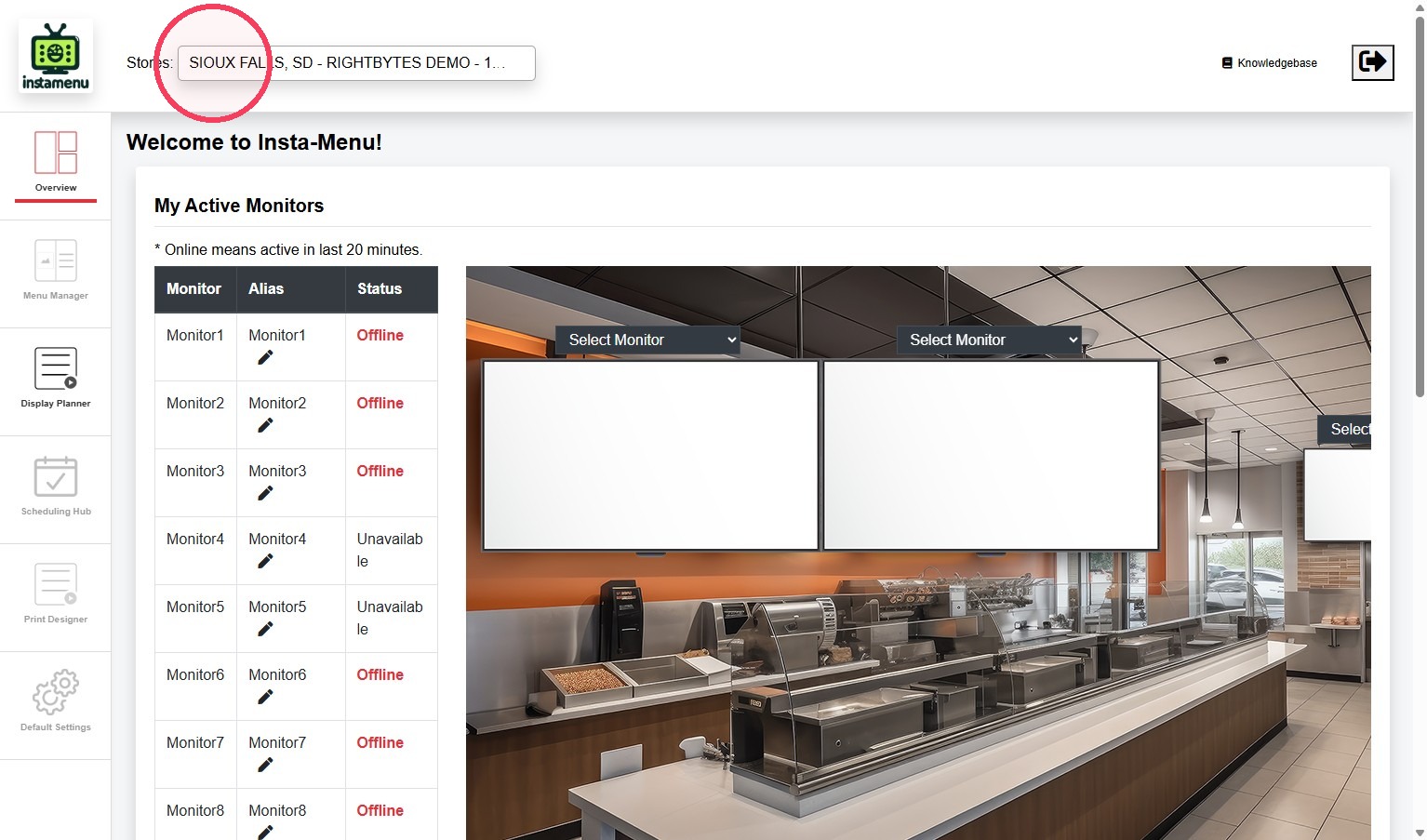
1. Select your Store from the dropdown.
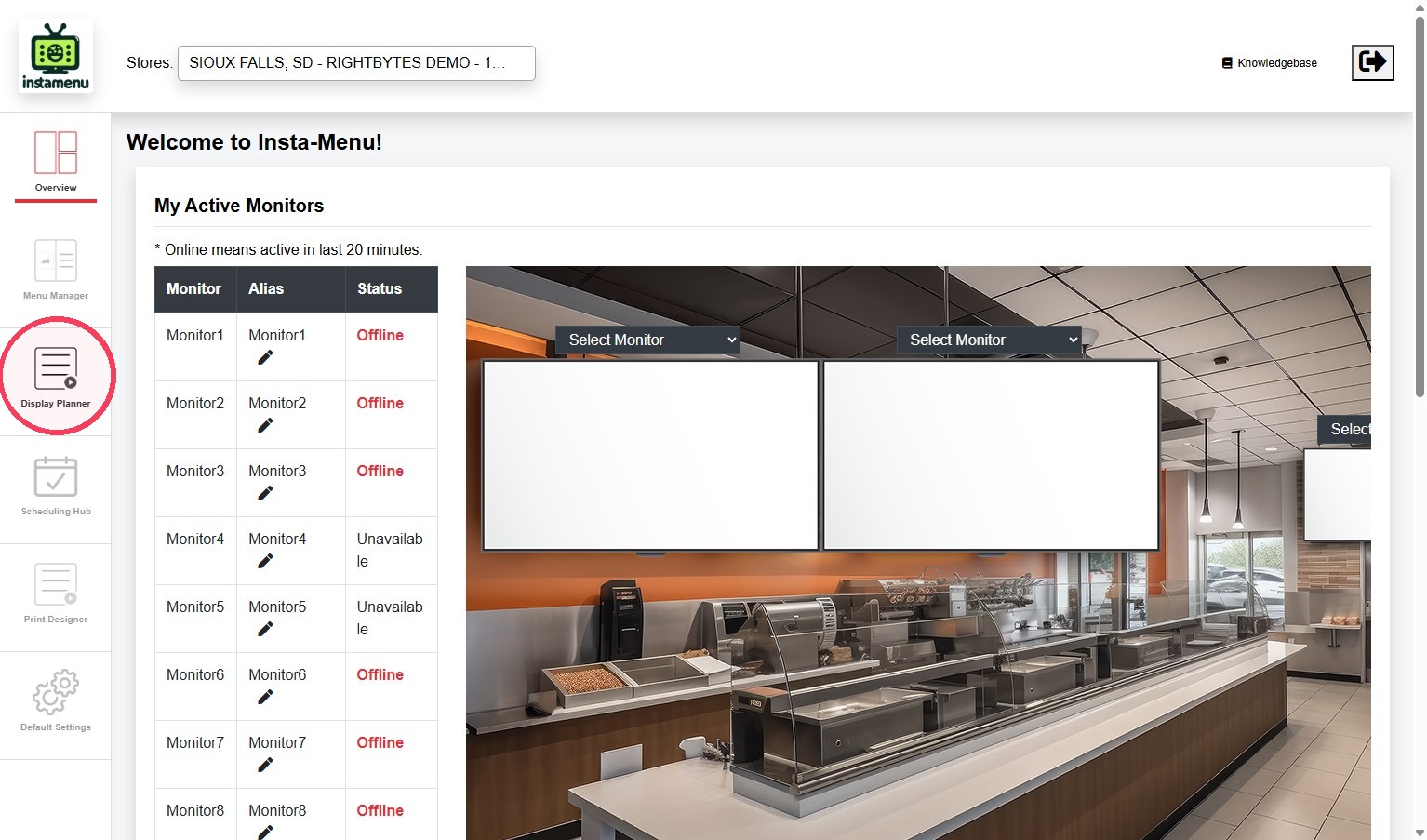
2. Click the Display Planner from the sidebar.
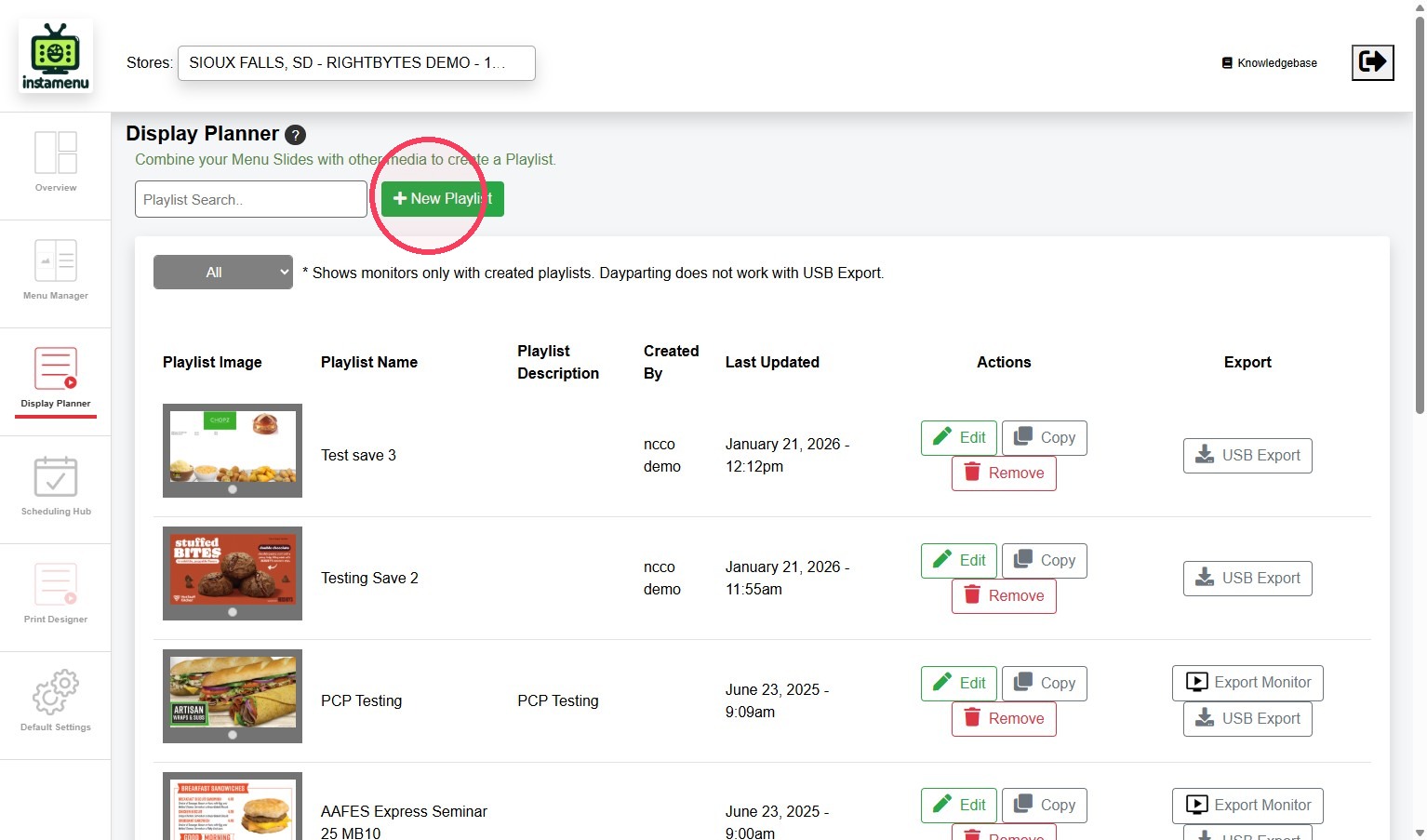
3. Click + New Playlist.
4. Type a Playlist Name.
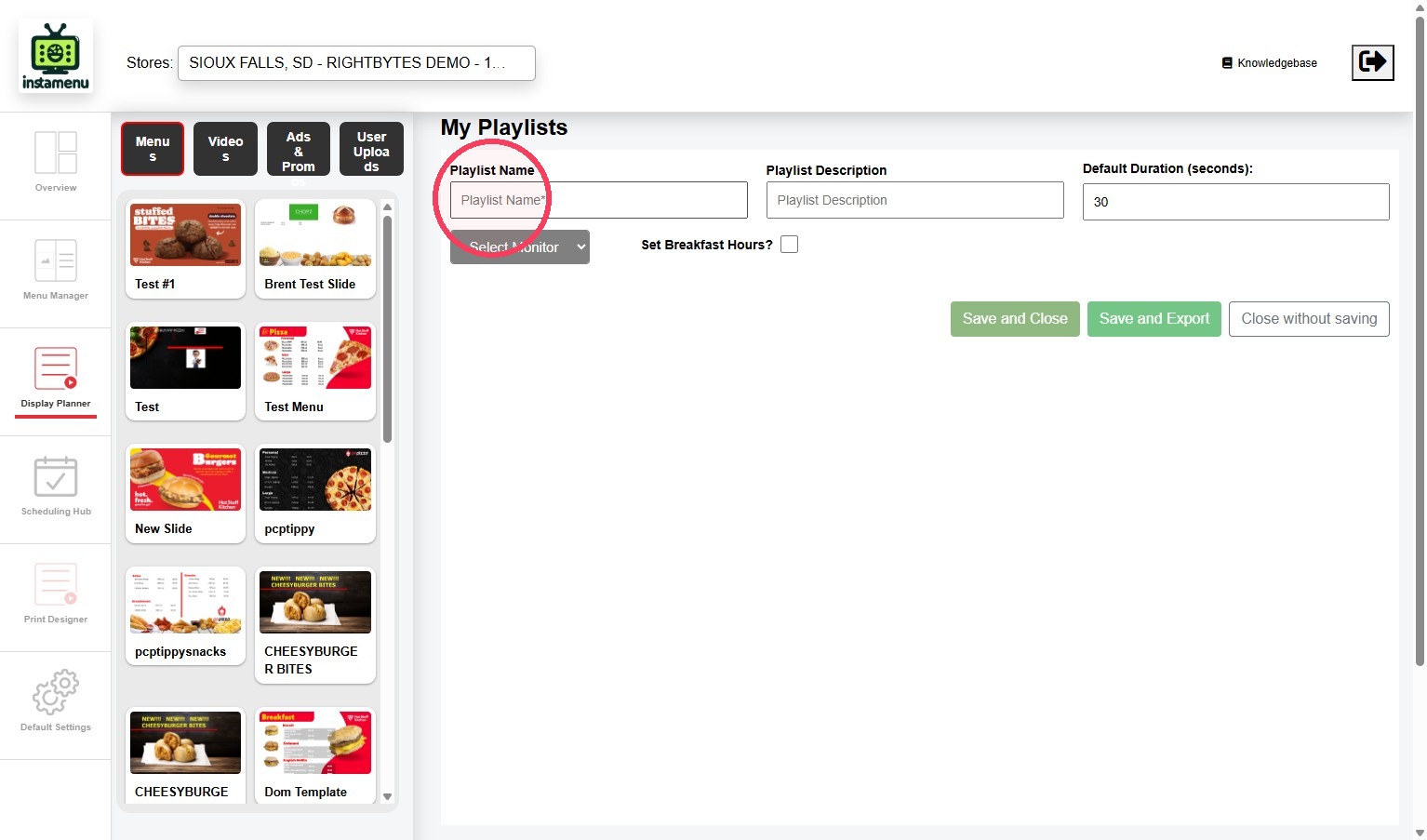
5. OPTIONAL: Add a Playlist Description for additional information on what this playlist is for.
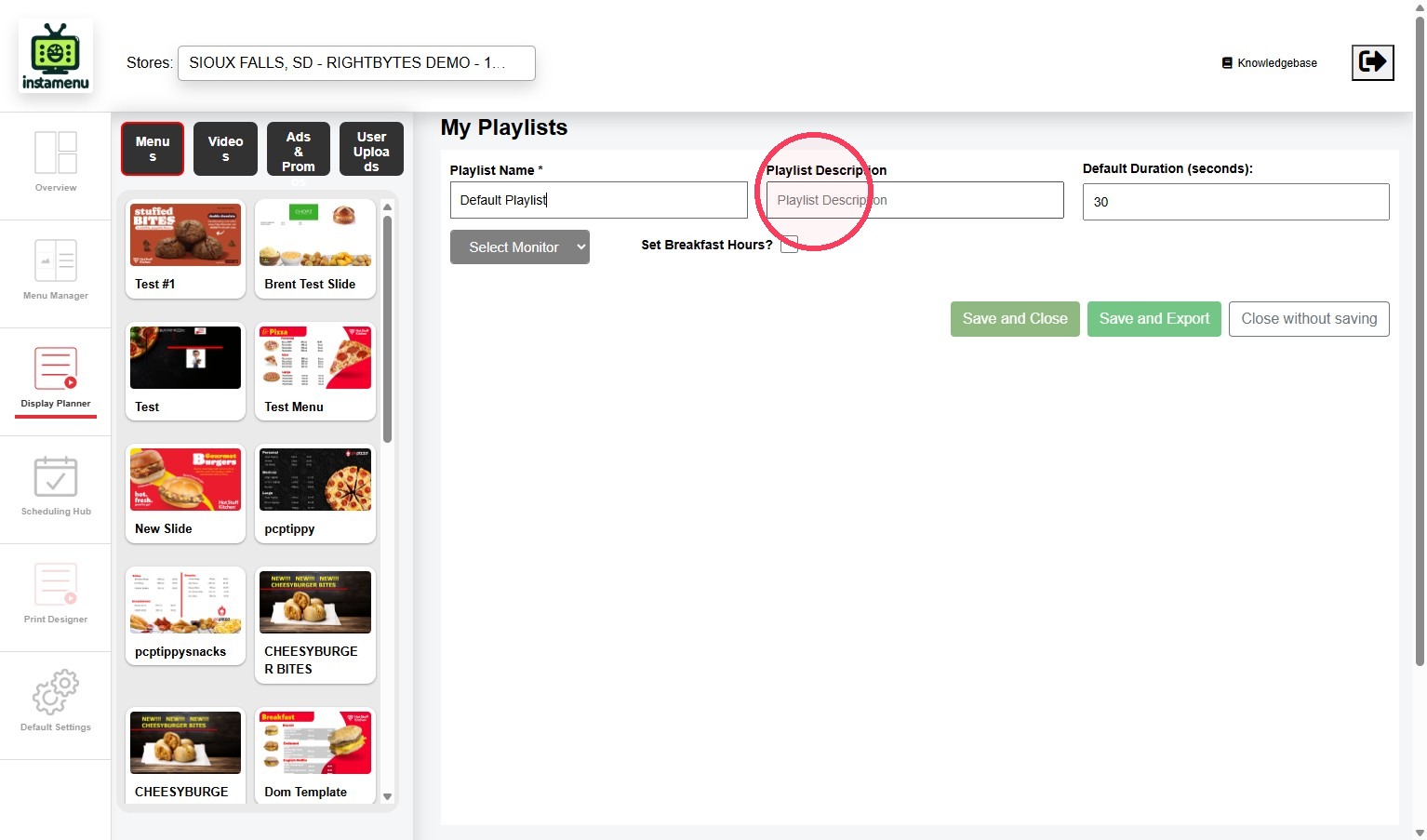
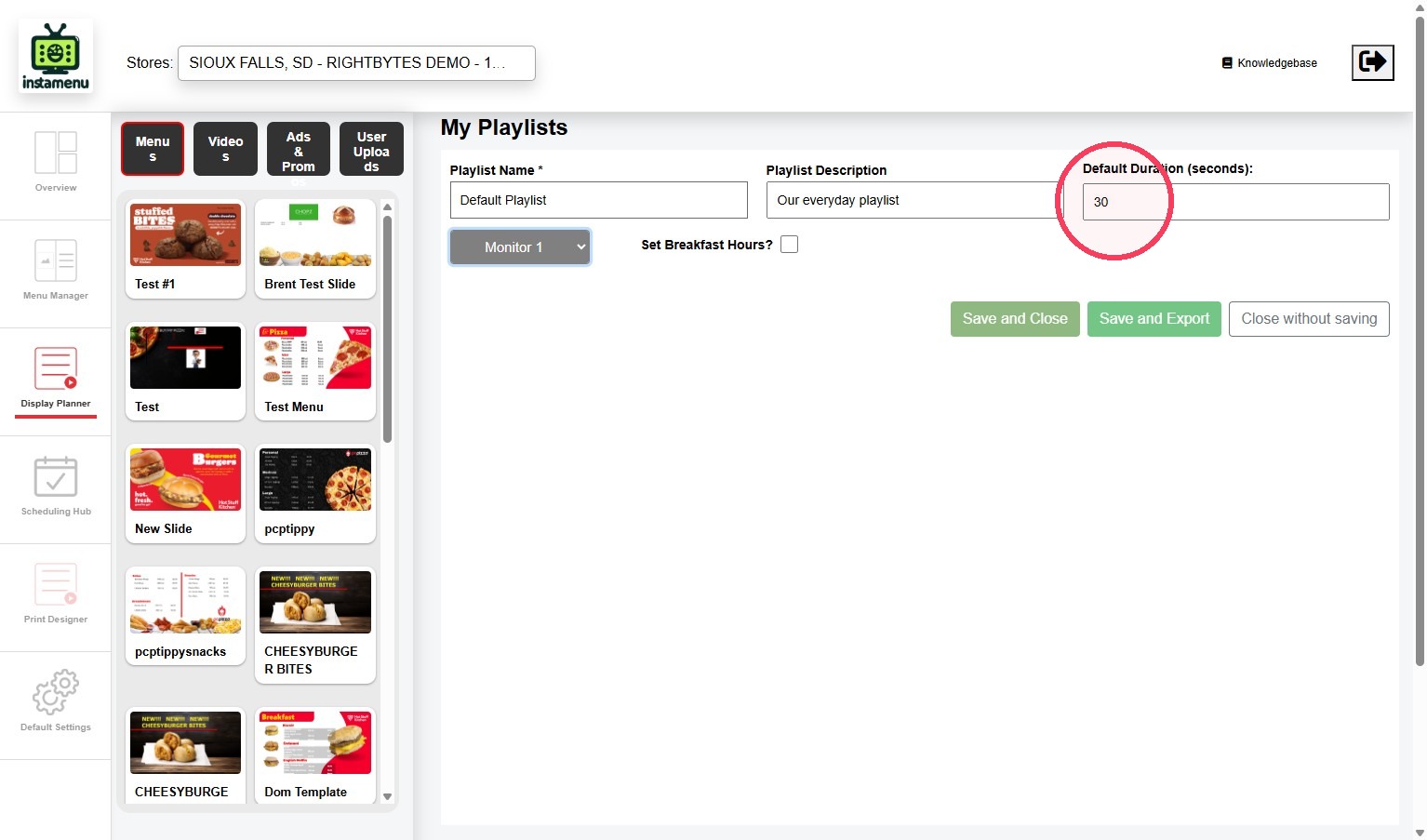
6. Type the Default Duration, or the seconds that each slide appears on the monitor.
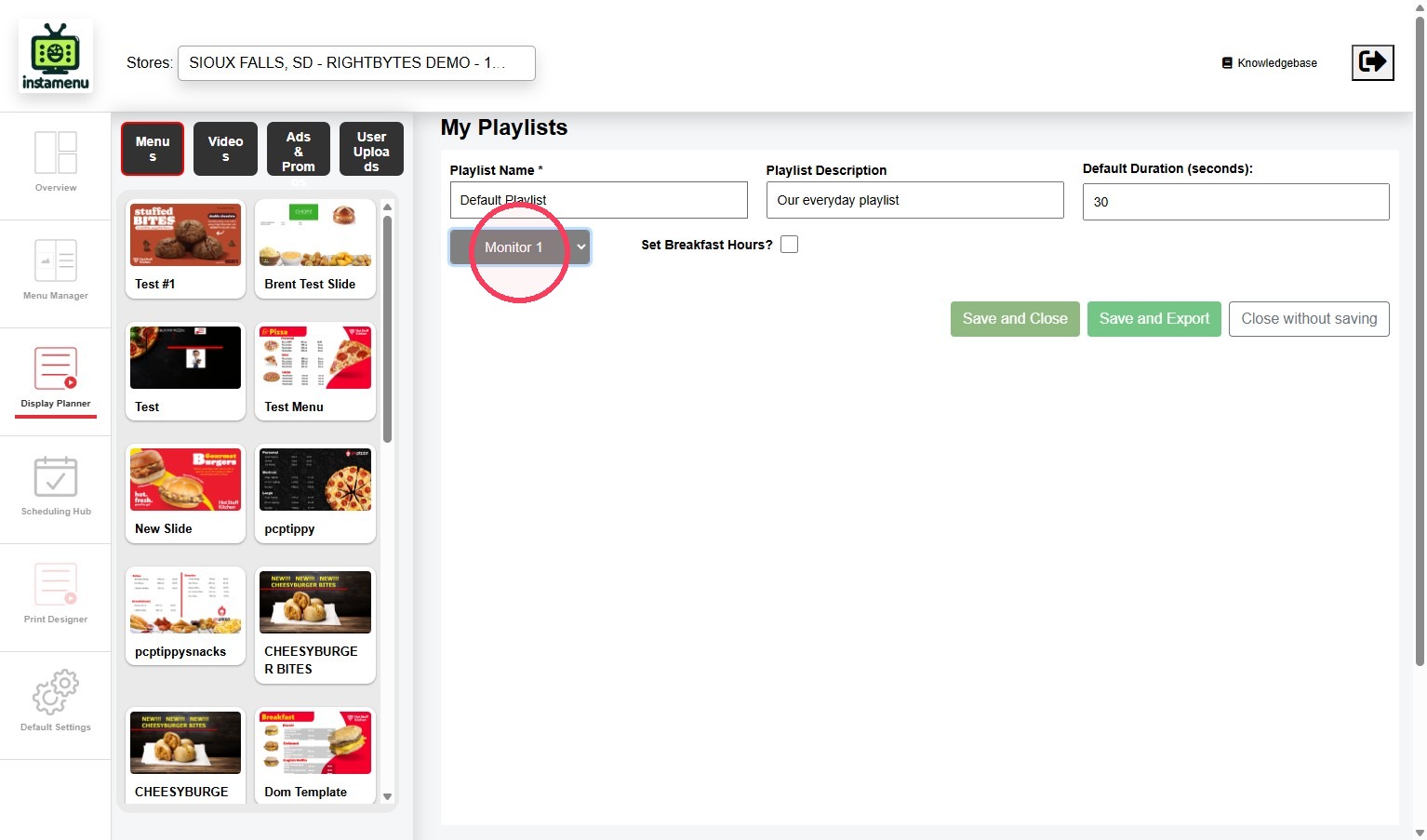
7. Assign the playlist to a monitor using the dropdown.
8. Click any slides you want to add to this playlist.
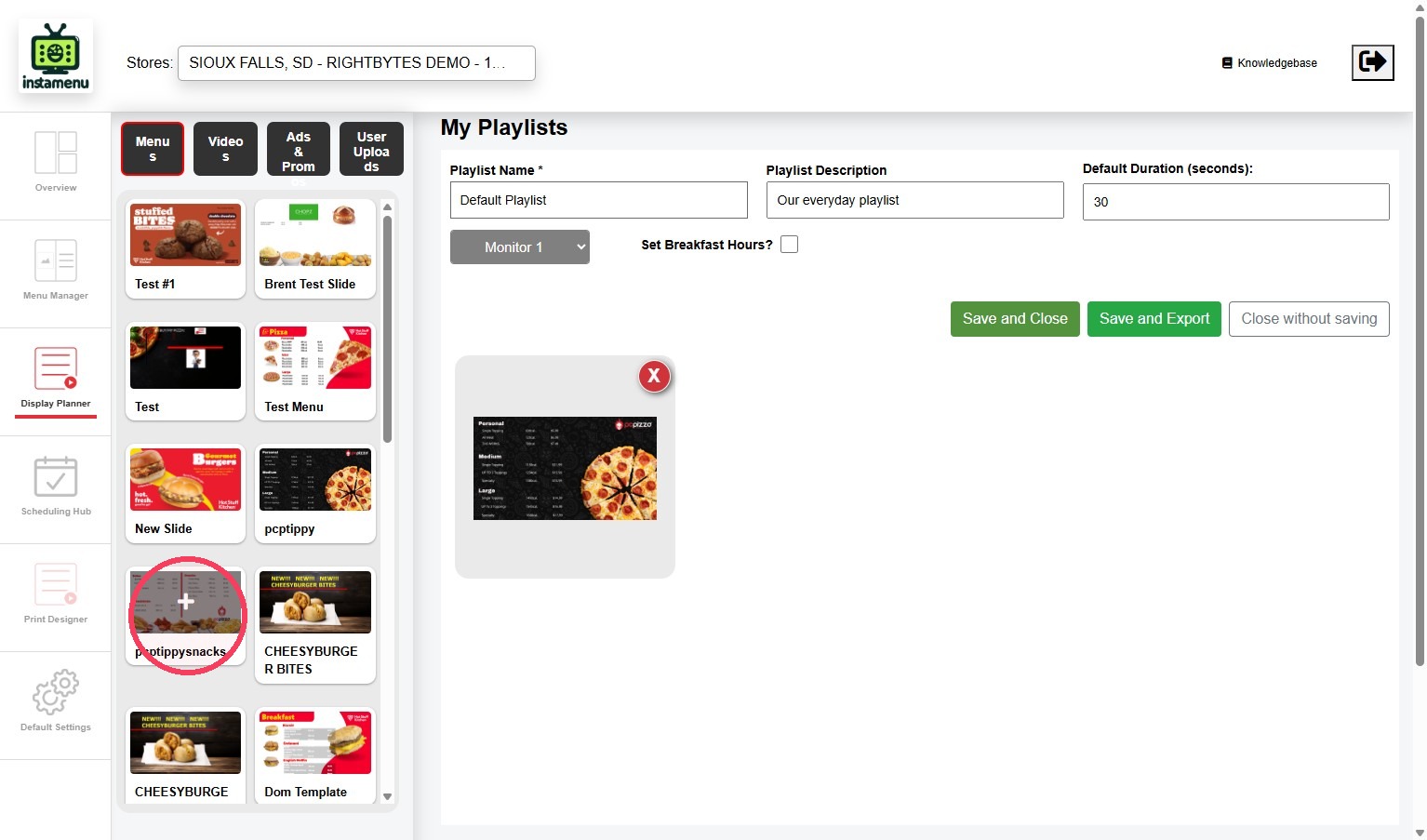
Upload a new slide.
You can upload a new slide for your playlist directly in the playlist editor.
Steps:
a. Click User Uploads.
.jpeg)
b. Click Upload Your Image and select the slide from your files.

9. Drag and drop to reorder the slides.

OPTIONAL: Set Breakfast Hours
Set up breakfast hours if you want to only display certain slides in the morning.
Steps:
a. Check Set Breakfast Hours?
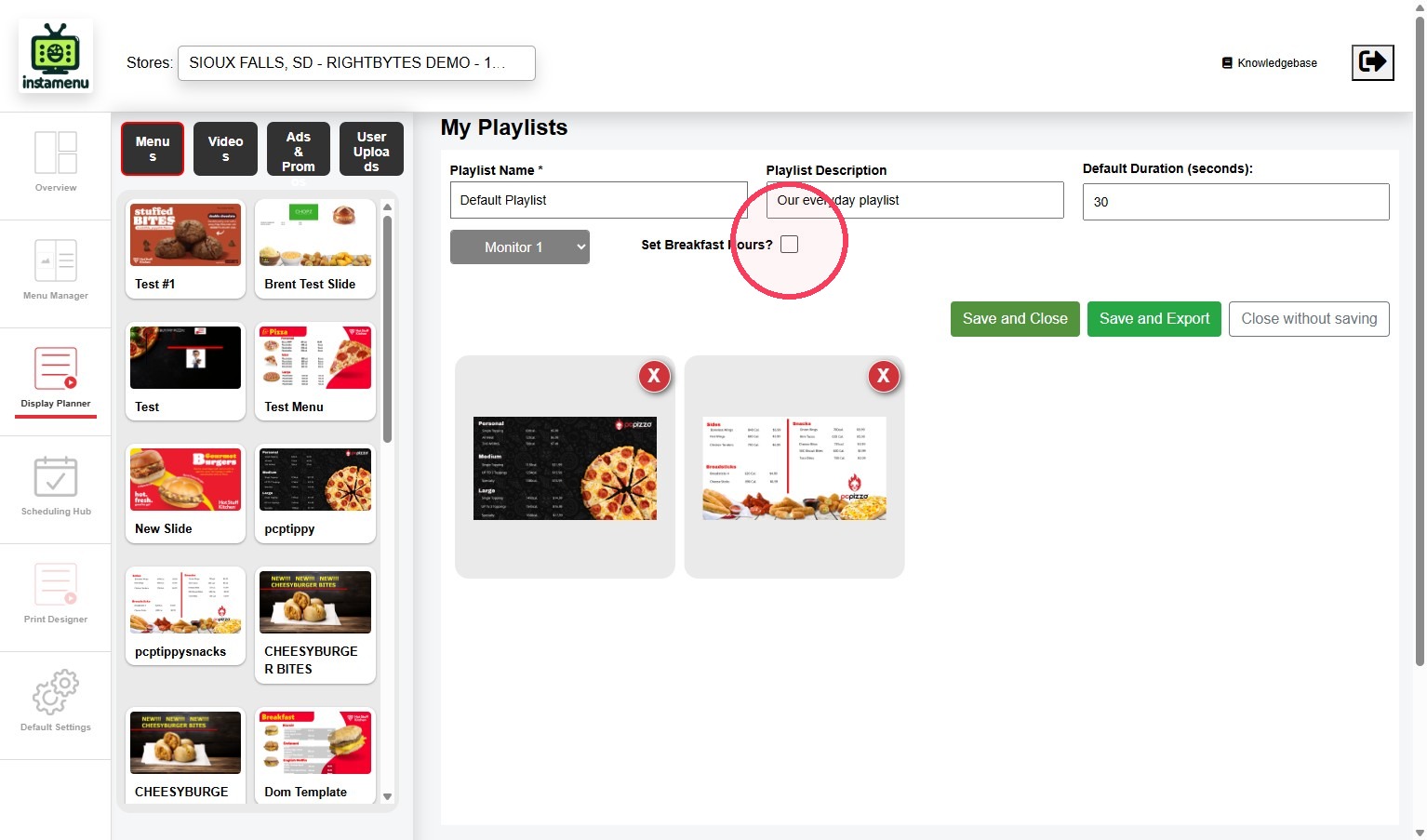
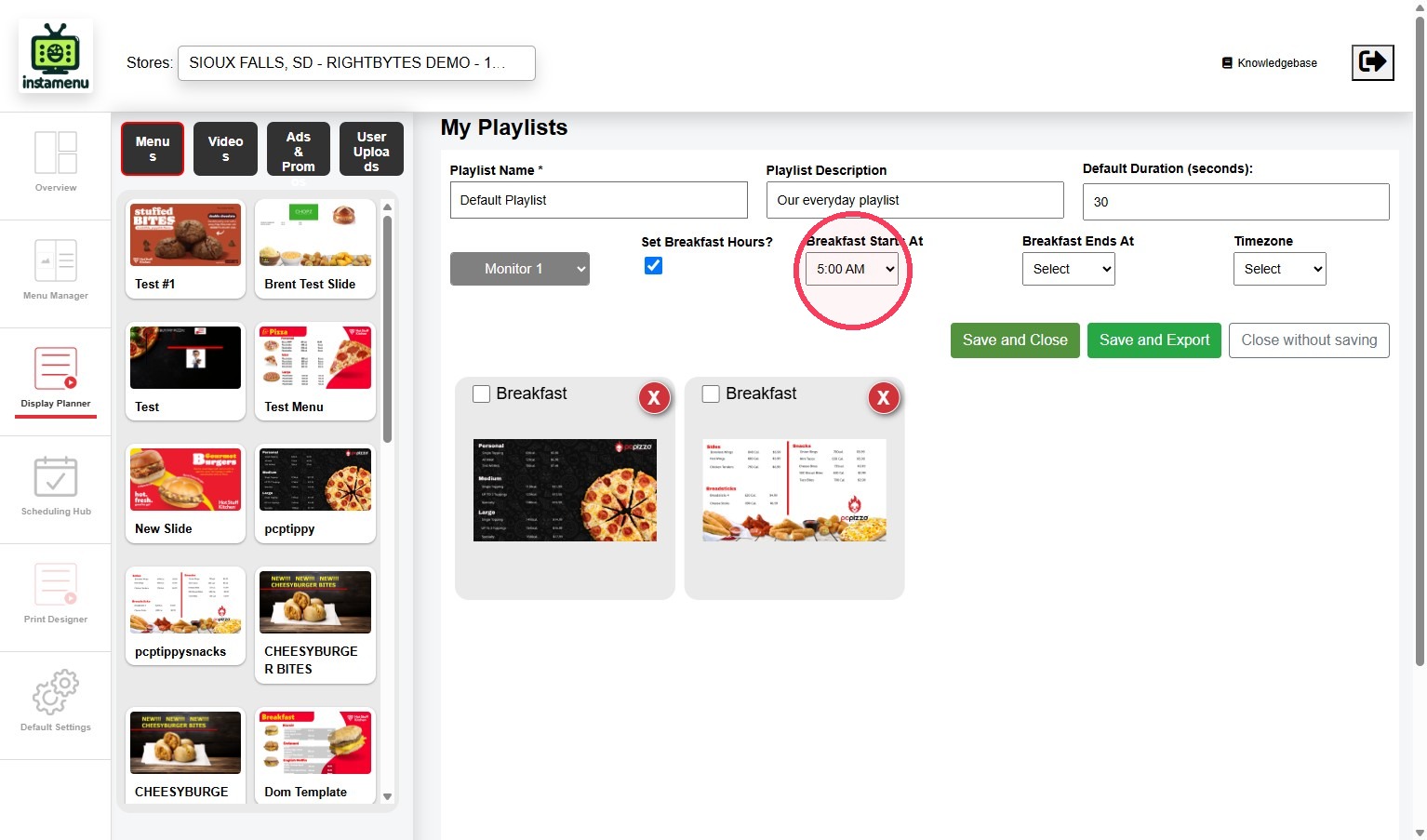
b. Select the time for Breakfast Starts At.
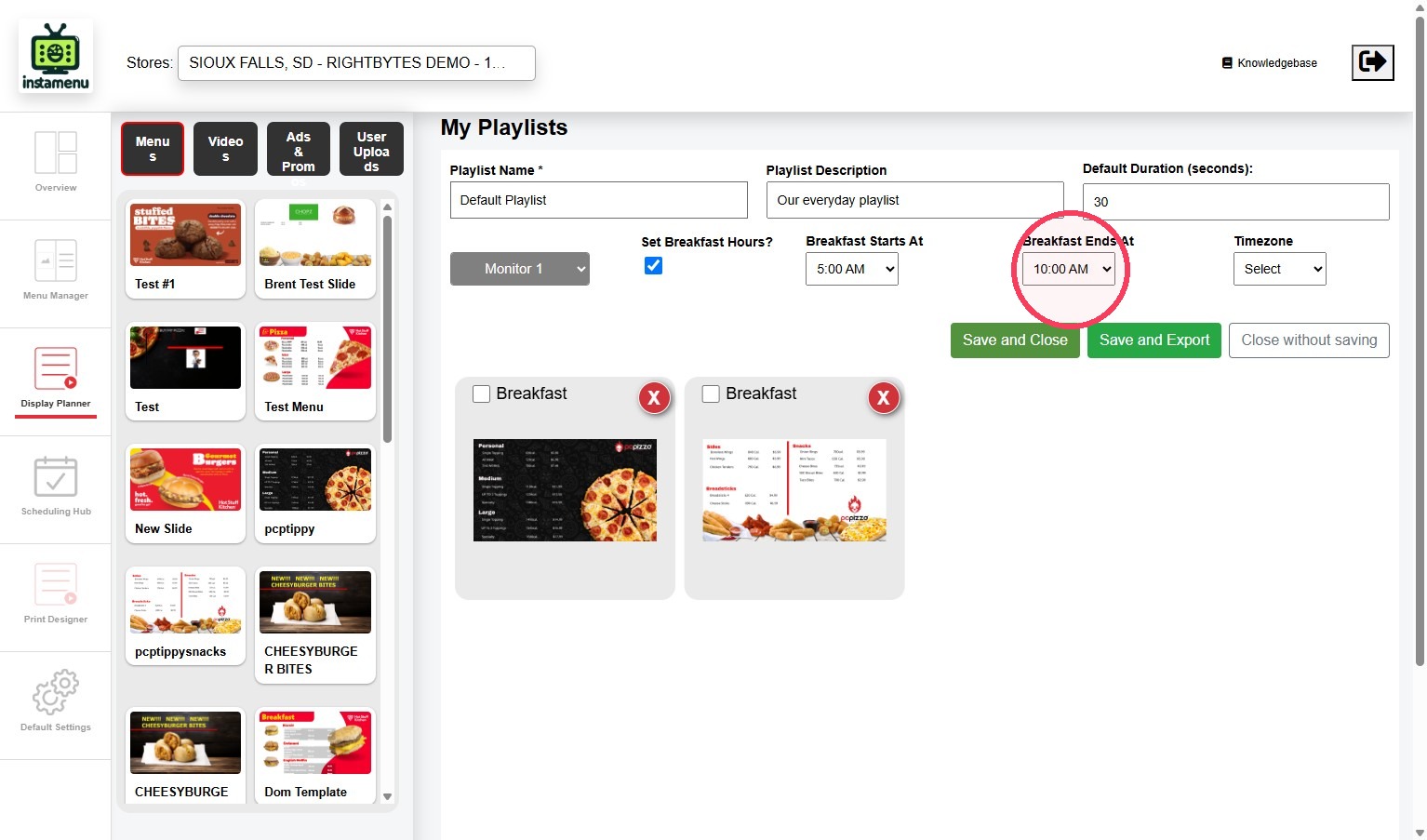
c. Select the time for Breakfast Ends At.
d. Set the Timezone for your store.
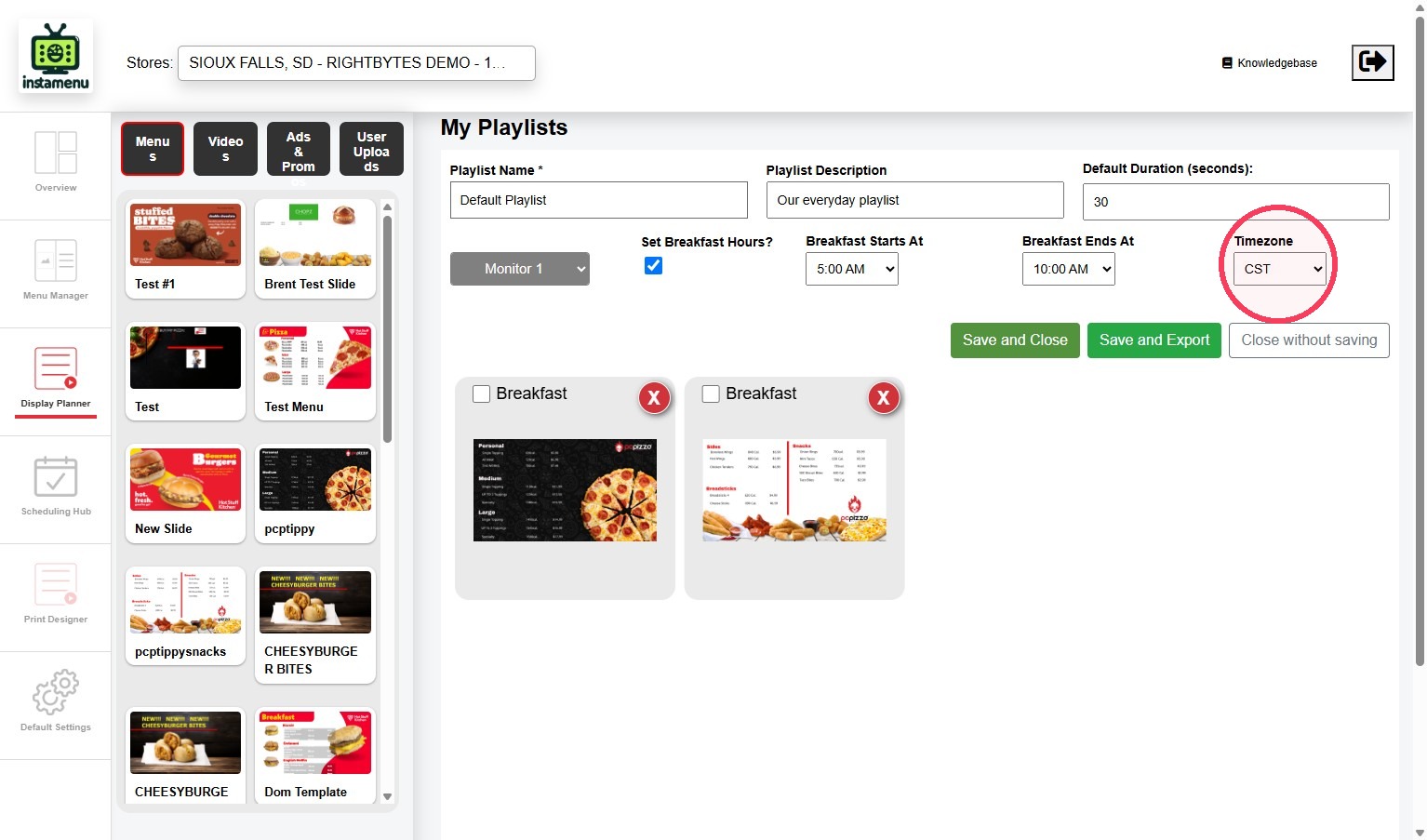
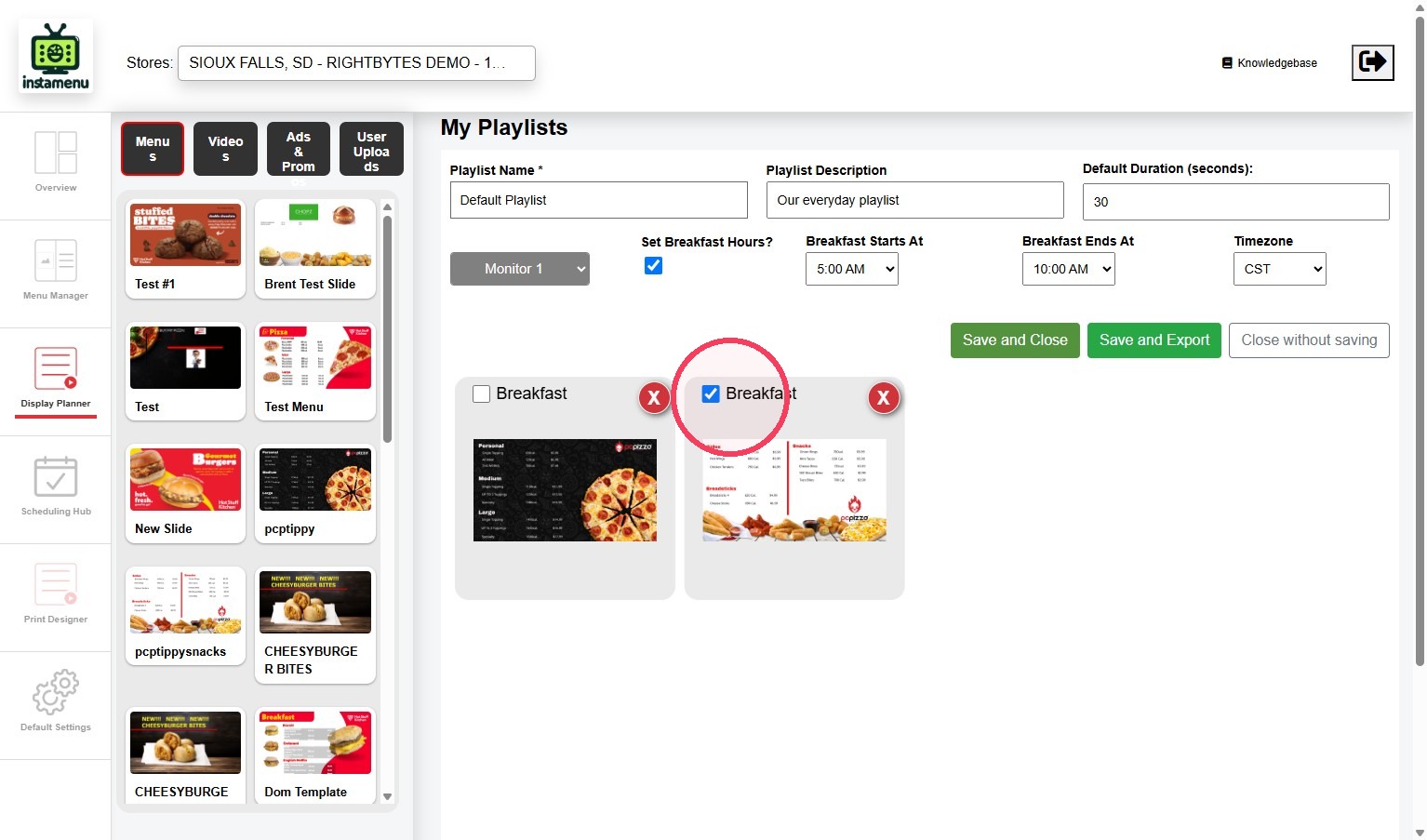
e. Check Breakfast for each slide that should appear during breakfast hours.
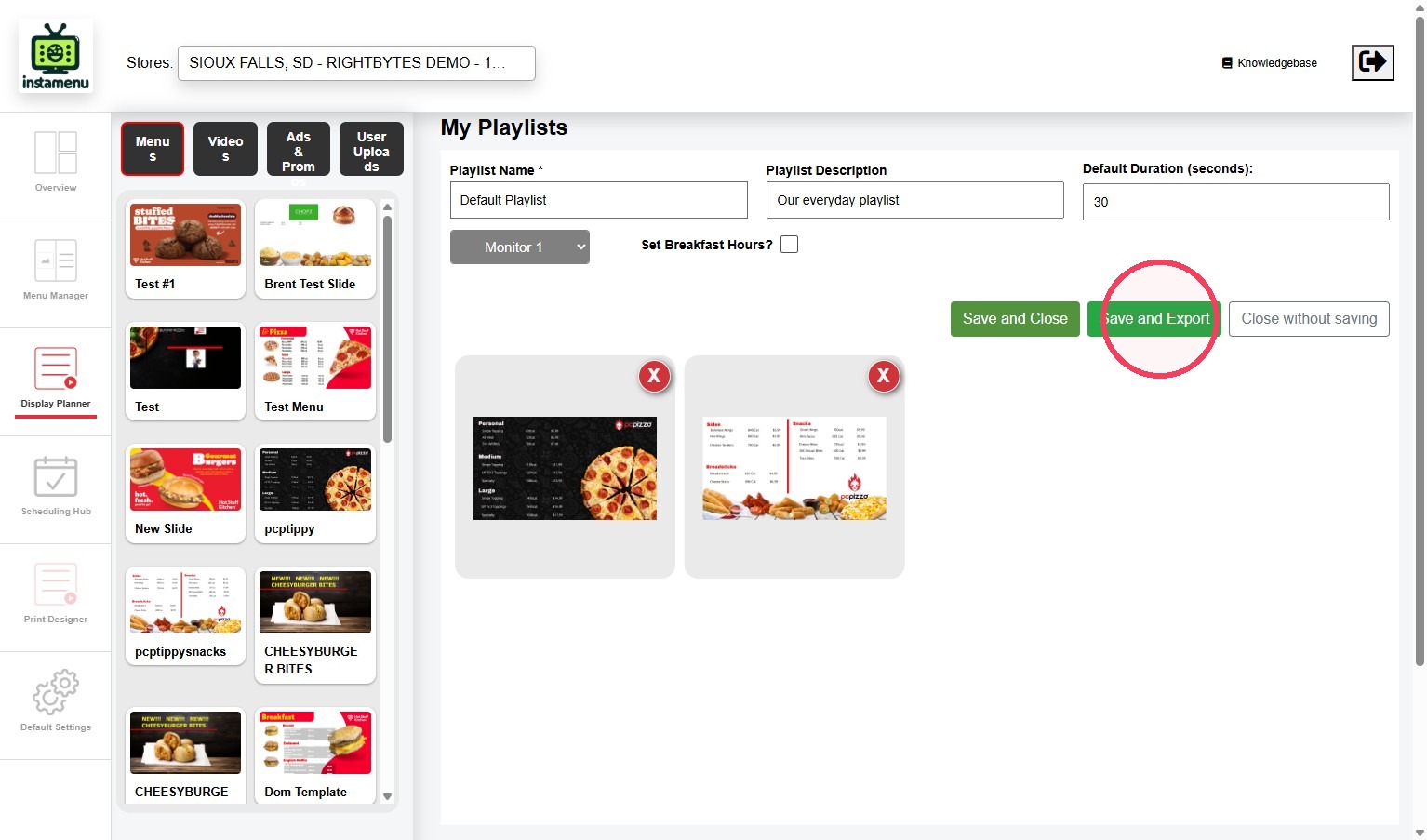
10. Click Save and Export to complete and send to the monitor.
WARNING
Always make sure you export your playlist to send the slides to your monitor.
Edit a Playlist
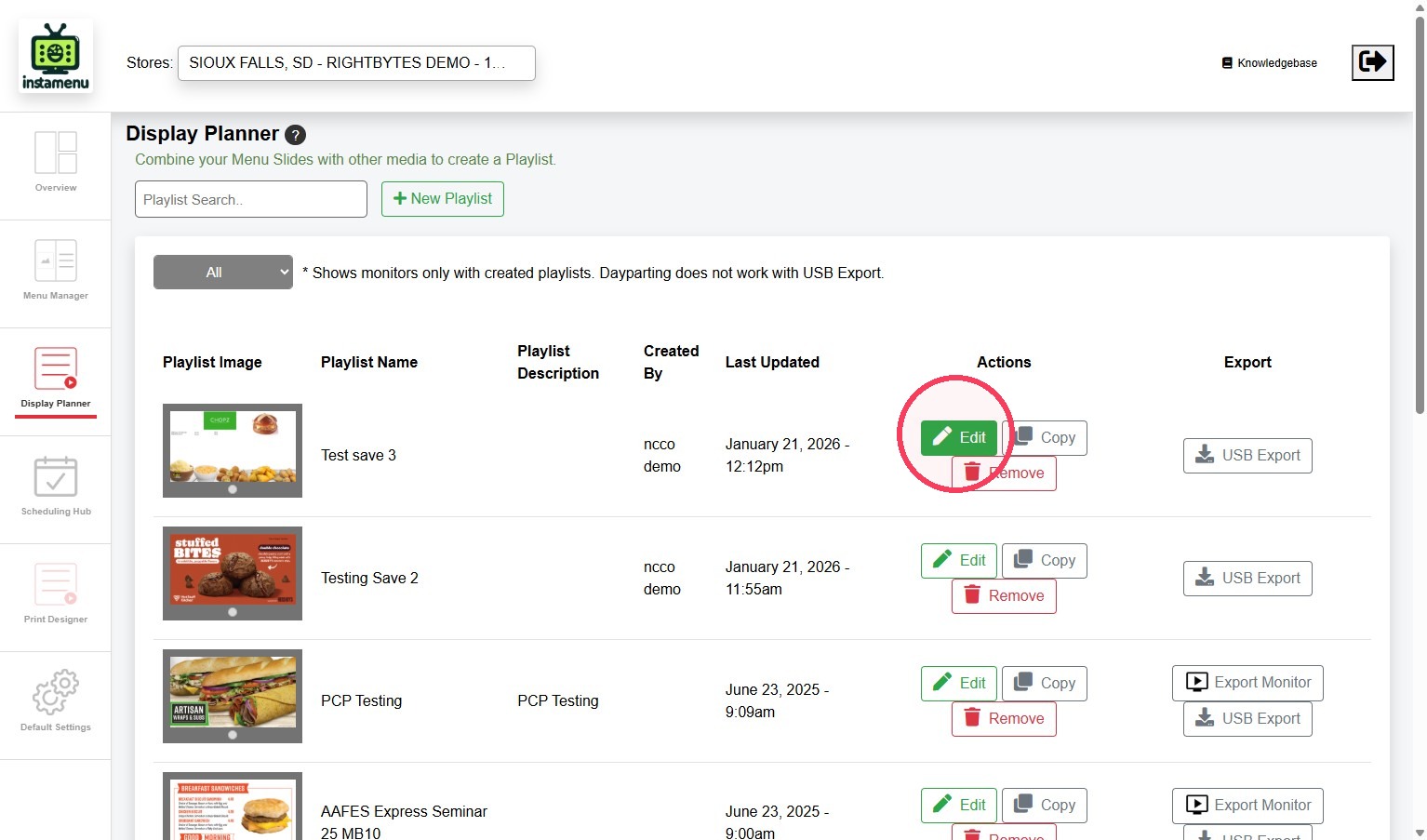
1. Click Edit next to the playlist.
2. Make edits, then click Save and Export.
Delete a Playlist
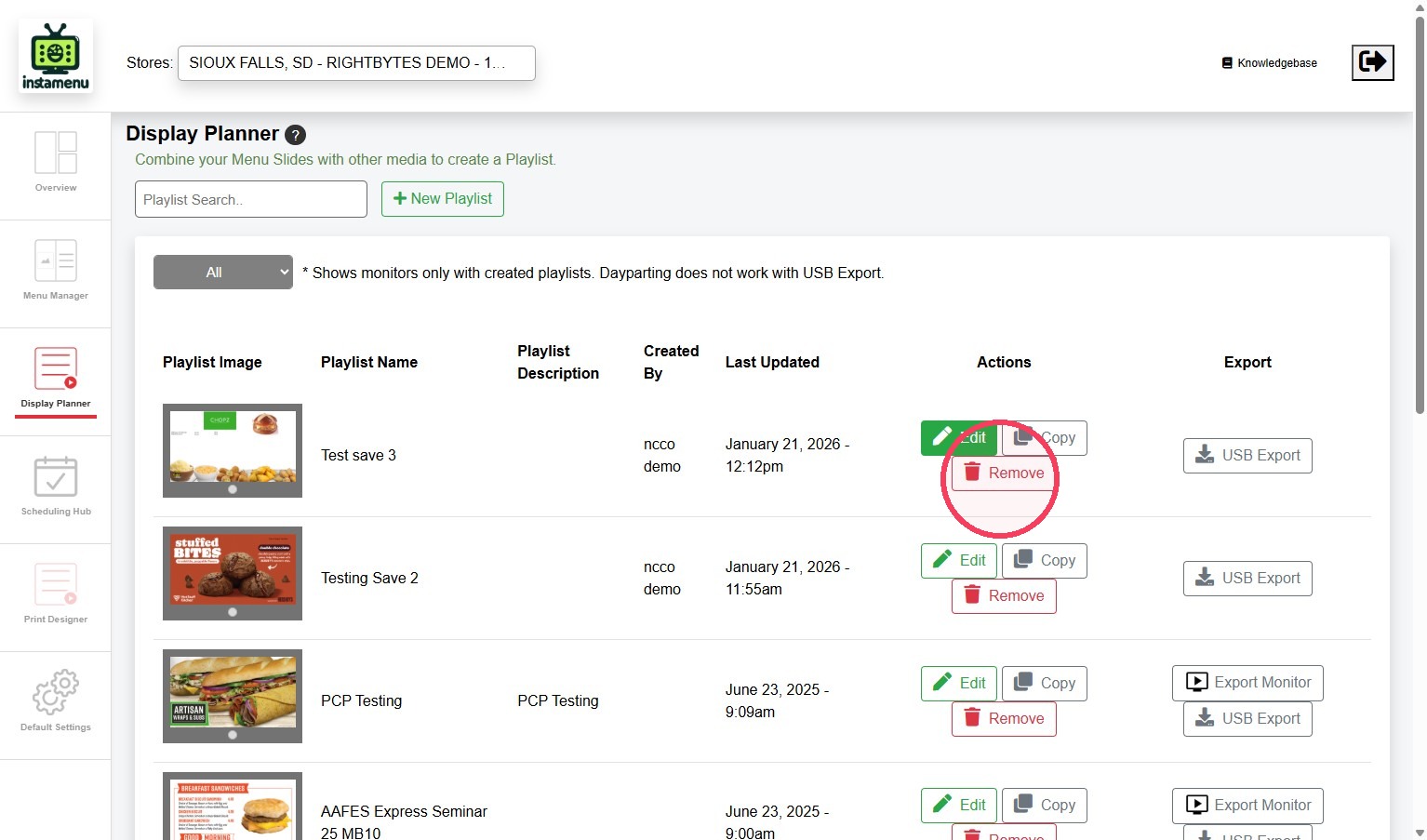
1. Click Remove next to the playlist to permanently delete.