NL Dutch
FR French
IT Italian
DE German
US English (US)
ES Spanish
menu

Contact Us

No results found. Still need help? Contact us

  • Scheduled Assistance
  • Contact Us
English (US)
NL Dutch
FR French
IT Italian
DE German
US English (US)
ES Spanish
arrow_back
  • DateCodeGenie
  • RightBytes
  • Task Manager
  • Scheduled Assistance
  • Contact Us

How to Manage Temporary Staff Members in Task Manager - Admin View

Contact Us

If you still have questions or prefer to get help directly from an agent, please submit a request.
We’ll get back to you as soon as possible.

  • Task Manager Overview
  • Venues
  • Forms
  • Approvals
  • Analytics
  • Users
  • Resources
  • Task Manager App
  • Task Manager Hardware
  • Troubleshooting
+ More
  • Home
  • Task Manager
  • Resources

Table of Contents

How to Manage Temporary Staff Members in Task Manager - Admin View

How to Manage Temporary Staff Members in Task Manager - Admin View

Learn how to access and edit specific temporary staff profiles within the administrative dashboard. This guide streamlines the process of updating staff information and reviewing their profile details efficiently.

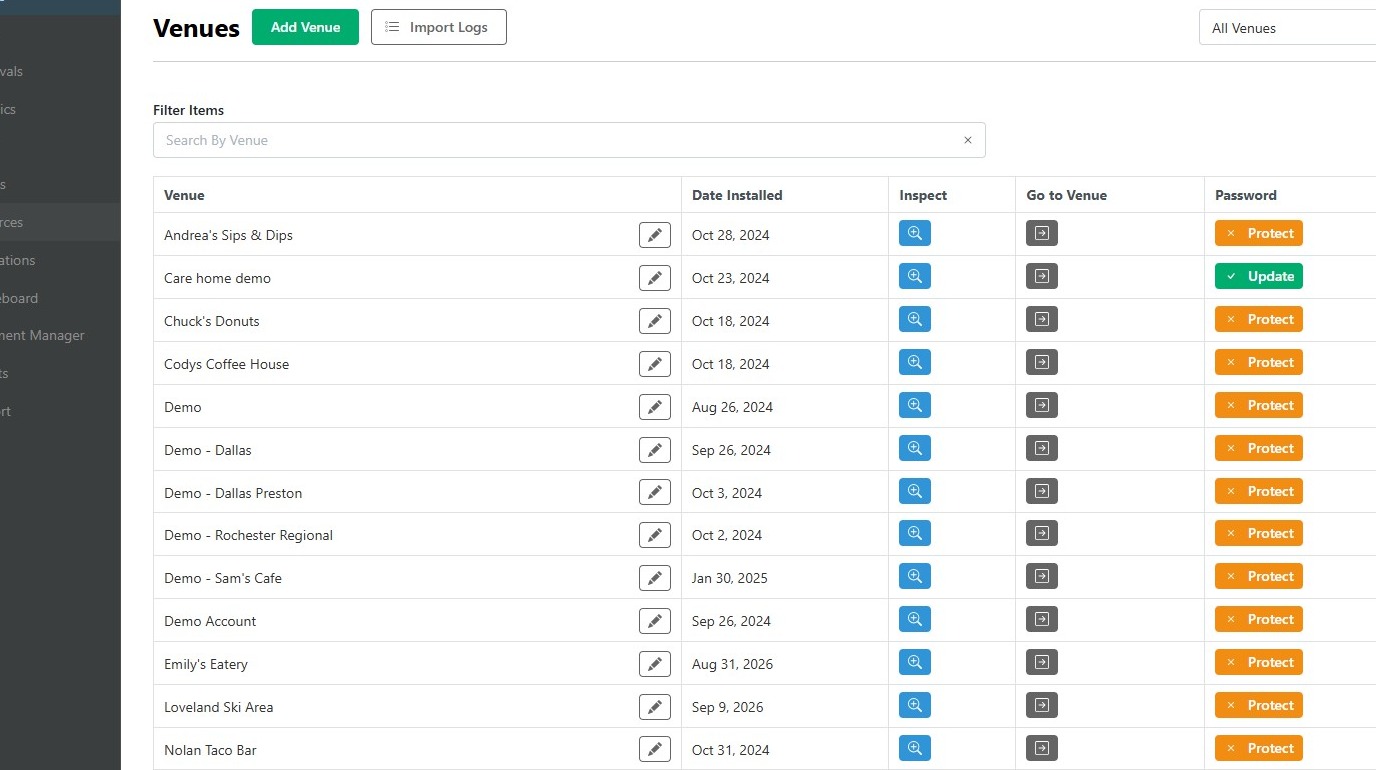
1. Navigate to https://taskmanager.us.ncco.com/admin/venues
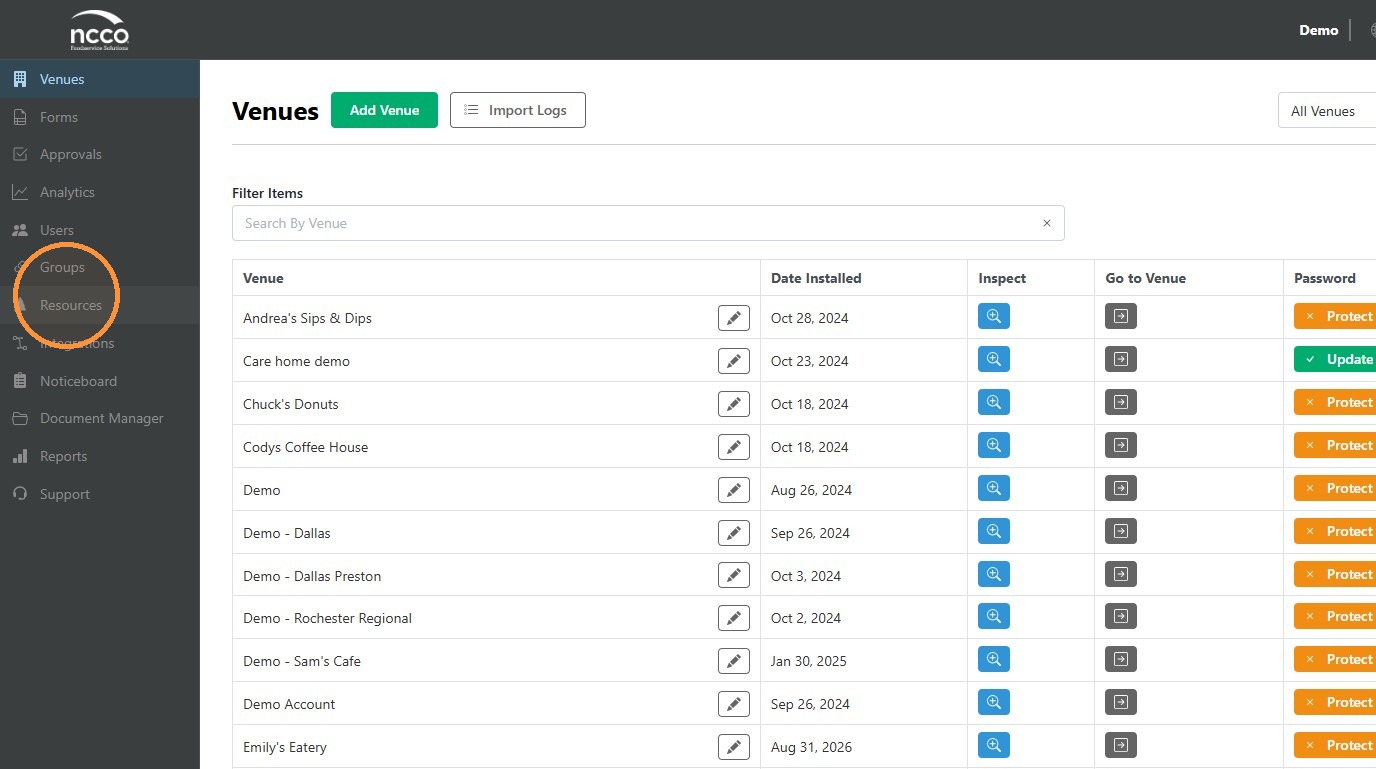
2. Click "Resources"
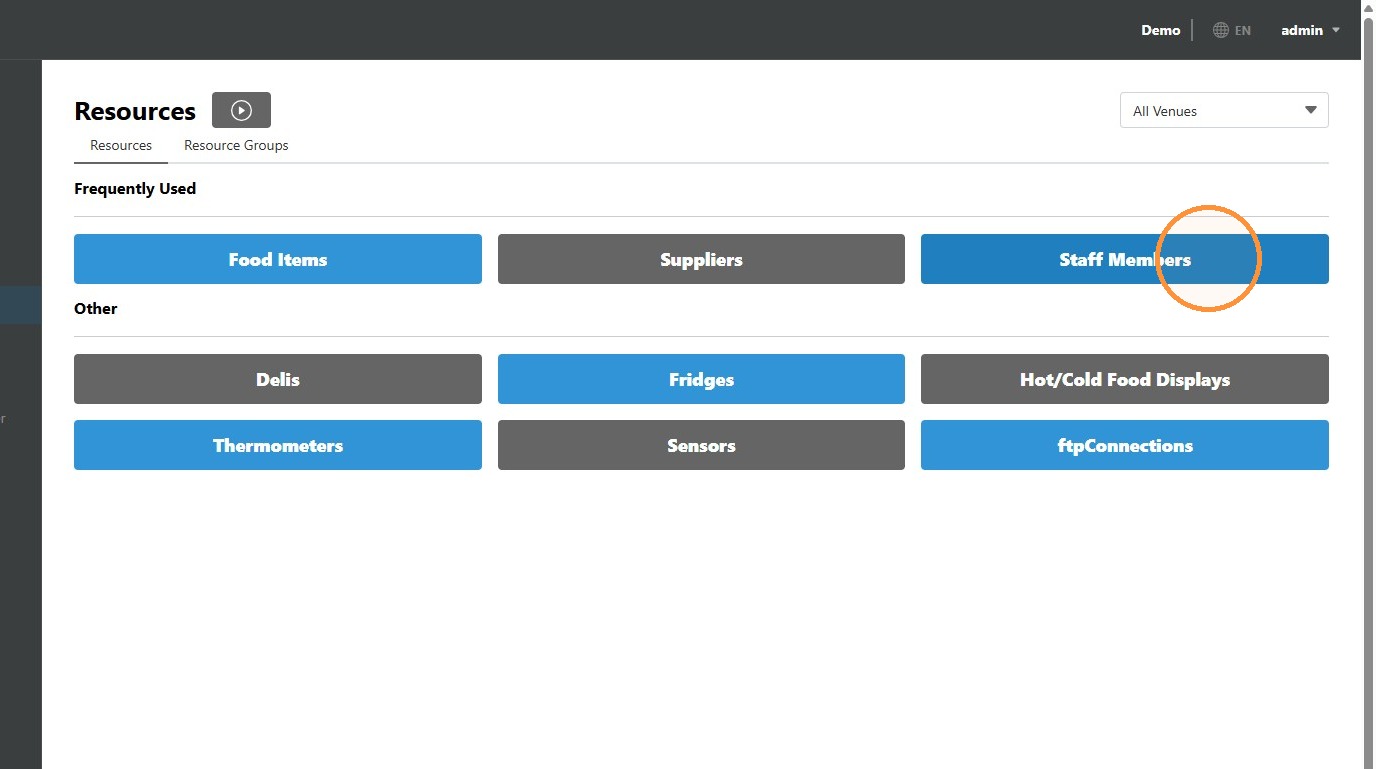
3. Click "Staff Members"
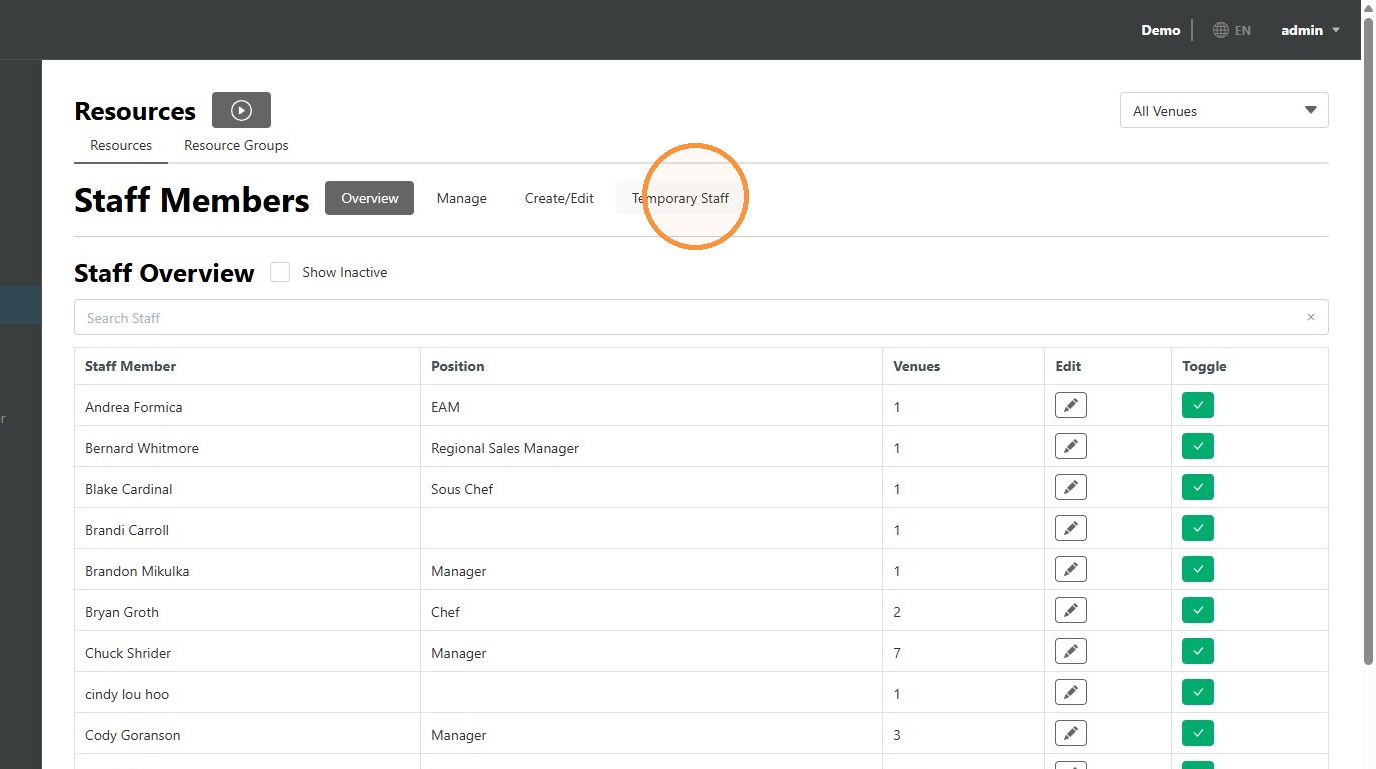
4. Click "Temporary Staff"
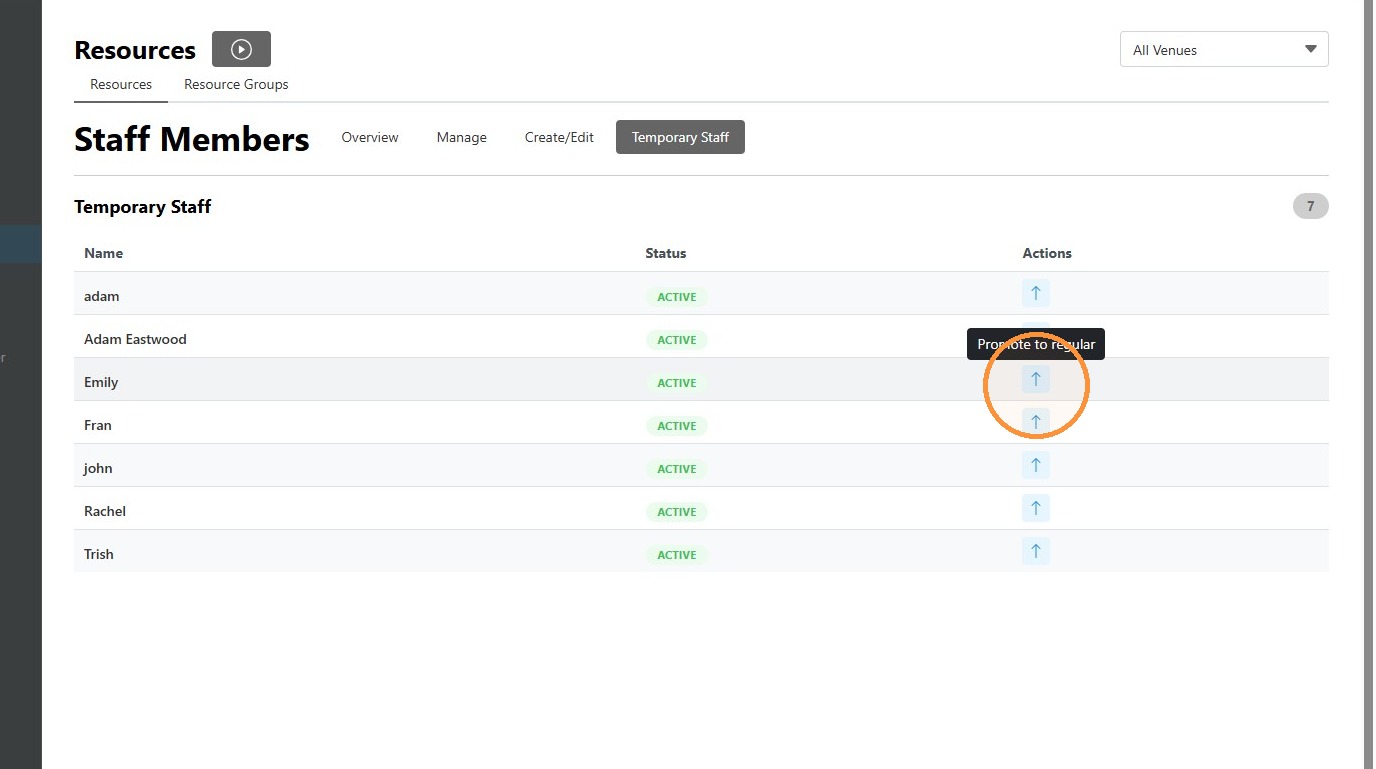
5. Click the up-arrow action for Emily to promote her to regular staff.
Related Articles

  • Add Staff in the Task Manager App

Was this article helpful?

Yes
No
Give feedback about this article For additional assistance, see Contact & Support

Related Articles

  • Add Staff in the Task Manager App
© 2026 DateCodeGenie

899 Montreal Circle, St. Paul, MN 55102

Privacy Policy

Learn more about our product
contact us
About NCCO

Knowledge Base Software powered by Helpjuice

Expand