NL Dutch
FR French
IT Italian
DE German
US English (US)
ES Spanish
menu

Contact Us

No results found. Still need help? Contact us

  • Scheduled Assistance
  • Contact Us
English (US)
NL Dutch
FR French
IT Italian
DE German
US English (US)
ES Spanish
arrow_back
  • DateCodeGenie
  • RightBytes
  • Task Manager
  • Scheduled Assistance
  • Contact Us

Date Fields

Contact Us

If you still have questions or prefer to get help directly from an agent, please submit a request.
We’ll get back to you as soon as possible.

  • Getting Started
    Getting Started Guides Set Up Training
  • Devices
    Troubleshooting Device Overview 2.0 Model X Series Model Fit Model Lite Model mC-Label3 Printer CL-S700III Printer Device Tablet Internet Connection Warranty & Support
  • App
    Error Codes Troubleshooting App Overview Mobile App Subscription Prep Lists Quick Labels Print History Product Control Location Overrides Temperature Probe Rosters Scale Language Settings
  • Portal
    Portal Overview Locations Groups Users Rosters Categories Containers Items Printer Profiles Quick Labels Prep List Print History Product Control Temperature Probe Mass Import and Export Settings Media Library Support Location Overrides Scale
  • Admin Settings
    Start with Admin Settings Admin Settings Overview Locations Devices and Licenses
  • Accessories
    Bluetooth Scanner USB Scanner Temperature Probe Scale Label Rewinder Fit Printer Shelf Warranty
  • Labels
    Overview Troubleshooting
  • Repairs
    2.0 Model X Series Model Lite Model DateCodeGenie® Tablet
  • APIs
    Inbound APIs Outbound APIs
+ More
  • Home
  • DateCodeGenie
  • Portal
  • Items

Table of Contents

TIP & TRICK Food Prepared: A date printed on the label of the item, which is the day it is made or prepared. Item Printer profile Food Expiration: A date printed on the label of the item, which is the day the food expires. Item Printer profile Food Pull: A date printed on the label of an item, which is the day the food should be pulled from sale or no longer sold. Item Printer profile Food Temper: A date printed on the label of the item, which is the day it must be heated or cooled at a specific temperature before expiration. Item Printer profile Food Thaw/Ready: A date printed on the label of the item, which is the day it's removed from the freezer to thaw and is ready to prep. Item Printer profile End of Day (EOD)

Date field features can be used to print dates on labels for best food quality.

Date fields are set in the Items tab and added to a label from the Printer Profiles tab, see Use Date Fields in an Item and Use Date Fields in a Printer Profile.

There are five date fields, four are set in the portal, and one is set on the app:

Portal App
Food Expiration Food Prepared
Food Pull  
Food Temper  
Food Thaw/Ready  

TIP & TRICK

When you use multiple date fields on one item, they calculate automatically based on each other. The Food Prepared date (the time you print or set) is the starting point for everything else. Expand the accordion sections below to see examples of how combined date fields work together.


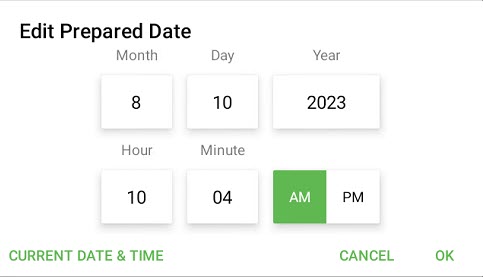
Food Prepared: A date printed on the label of the item, which is the day it is made or prepared.

The start date of the food prepared date and can be edited in the portal and app. Located in the print preview page app notification bar, see Understanding the Print Preview Page

The item will expire at the end of the 24 hour day of the set expiration date.

Item

App


Printer profile



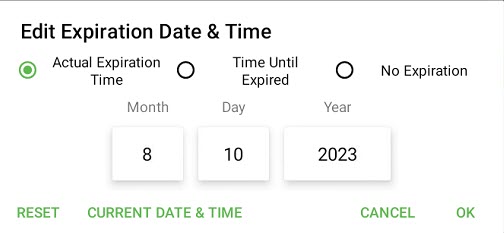
Food Expiration: A date printed on the label of the item, which is the day the food expires.

Starts from the prepared date and includes the thaw/ready date. Can be edited in the portal and app.

Item

Portal


App


Printer profile



Food Pull:  A date printed on the label of an item, which is the day the food should be pulled from sale or no longer sold.

Starts on prepared date and can be edited in the portal.

Example of Combined Date Fields:

Expiration date (2 Days) + Pull date (4 Hours)

How it works: Both the 4 hour pull date clock and the 2 day expiration date clock start immediately when prepped.

The label shows: A pull date time for 4 hours from now, and an expiration date for 2 days from now.

Item


Printer profile


Food Temper: A date printed on the label of the item, which is the day it must be heated or cooled at a specific temperature before expiration.

Starts on prepared date and can be edited in the portal.

Example of Combined Date Fields:

Expiration date (2 Days) + Temper date (3 Hours)

How it works: The 3 hour temper date clock and the 2 day expiration date clock both start immediately when prepped.

The label shows: A temper date time for 3 hours from now, and an expiration date for 2 days from now.

Item


Printer profile


Food Thaw/Ready: A date printed on the label of the item, which is the day it's removed from the freezer to thaw and is ready to prep.

Number of days from prepared date, adds to expiration date. Can be edited in the portal.

Example of Combined Date Fields:

Expiration date (2 Days) + Thaw date (1 Day)

How it works: The item thaws for 1 day first. The 2 day expiration date countdown doesn't start until the thaw date time is complete.

The label shows: A thaw ready time for tomorrow, and an expiration date for 3 days from now (1 day thaw + 2 days shelf life).

Item


Printer profile


End of Day (EOD)

  • Use Expires at the end of day for an item that must expire at the end of a 24 hour day of the set expiration period.
  • Use Thaws/Ready at end of day box for an item that will expire or be ready through the end of the number of days set for the item.
  • The letters EOD can be printed on labels after the expiration date as a reminder.
  • If End of Day box is not used, the item date field added to the label will use the date, hour, and minute printed to display the exact date and time the item will expire or be ready based on the prepared date and time.


Managers need permissions turned on to edit date fields:

  • Add or Edit Menu Items Permission
  • Add or Edit Printer Profiles Permission

Related Articles

  • Use Date Fields in an Item
  • Use Date Fields in a Printer Profile
  • Manage Printer Profiles
  • Manage Items

Was this article helpful?

Yes
No
Give feedback about this article For additional assistance, see Contact & Support

Related Articles

  • Use Date Fields in an Item
  • Use Date Fields in a Printer Profile
  • Manage Printer Profiles
  • Manage Items
© 2026 DateCodeGenie

899 Montreal Circle, St. Paul, MN 55102

Privacy Policy

Learn more about our product
contact us
About NCCO

Knowledge Base Software powered by Helpjuice

Expand