NL Dutch
FR French
IT Italian
DE German
US English (US)
ES Spanish
menu

Contact Us

No results found. Still need help? Contact us

  • Scheduled Assistance
  • Contact Us
English (US)
NL Dutch
FR French
IT Italian
DE German
US English (US)
ES Spanish
arrow_back
  • DateCodeGenie
  • RightBytes
  • Task Manager
  • Scheduled Assistance
  • Contact Us

How to Utilize the Temporary Staff Feature - Staff View

Contact Us

If you still have questions or prefer to get help directly from an agent, please submit a request.
We’ll get back to you as soon as possible.

  • Task Manager Overview
  • Venues
  • Forms
  • Approvals
  • Analytics
  • Users
  • Resources
  • Task Manager App
  • Task Manager Hardware
  • Troubleshooting
+ More
  • Home
  • Task Manager
  • Resources

Table of Contents

How to Utilize the Temporary Staff Feature - Staff View

How to Utilize the Temporary Staff Feature - Staff View

Learn how to quickly add a new staff member using the Task Manager temporary staff feature.


1. Navigate to https://taskmanager.us.ncco.com/main/menu.php
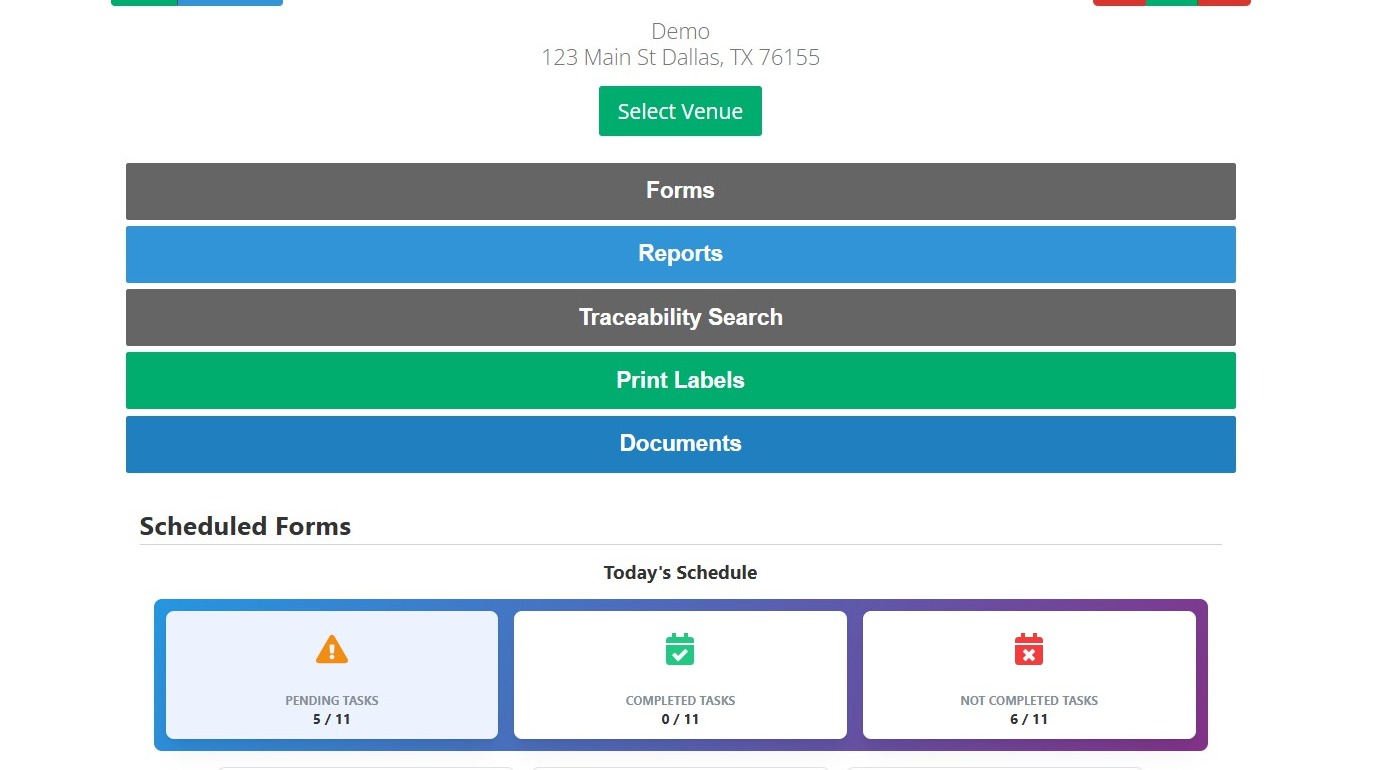
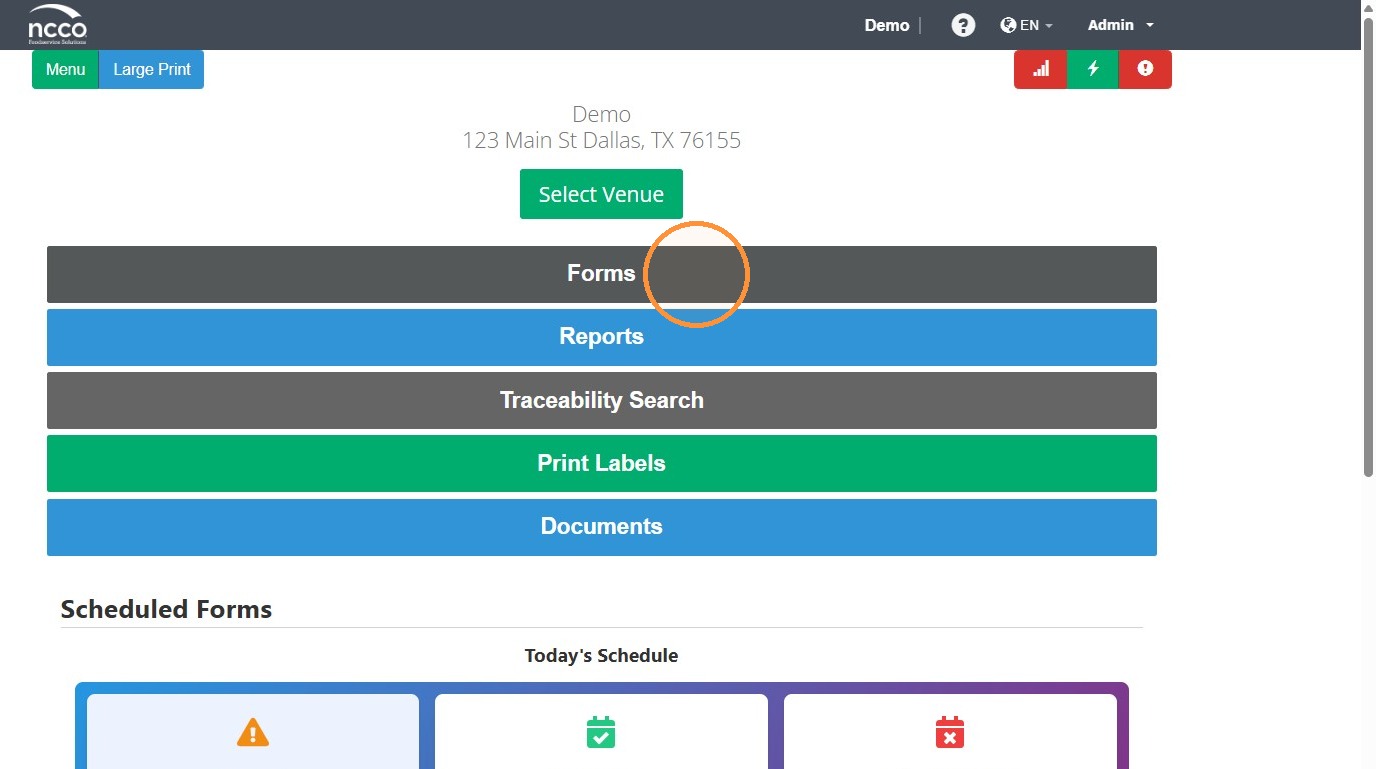
2. Click "Forms" or navigate to a scheduled task.
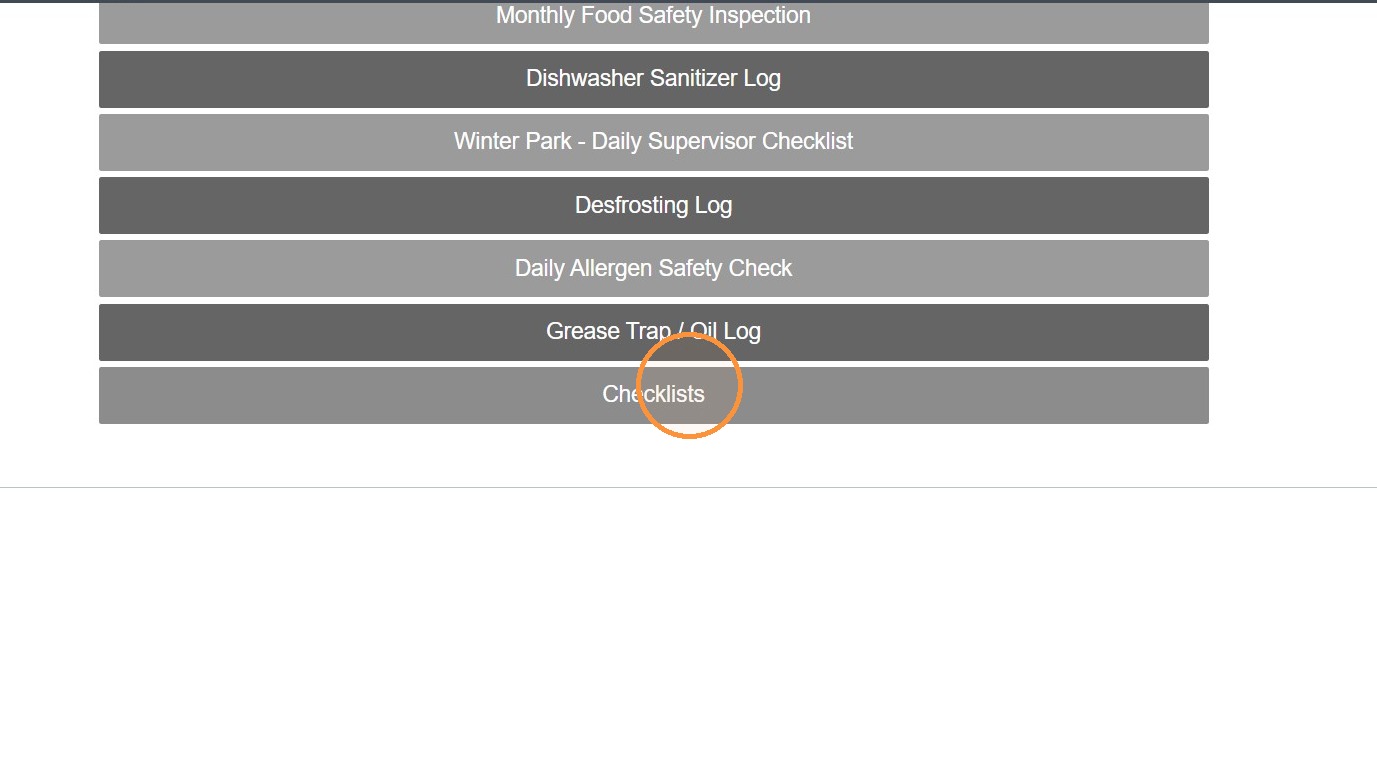
3. Click the form you'd like to fill out.
4. Click the "Staff Member*" field.
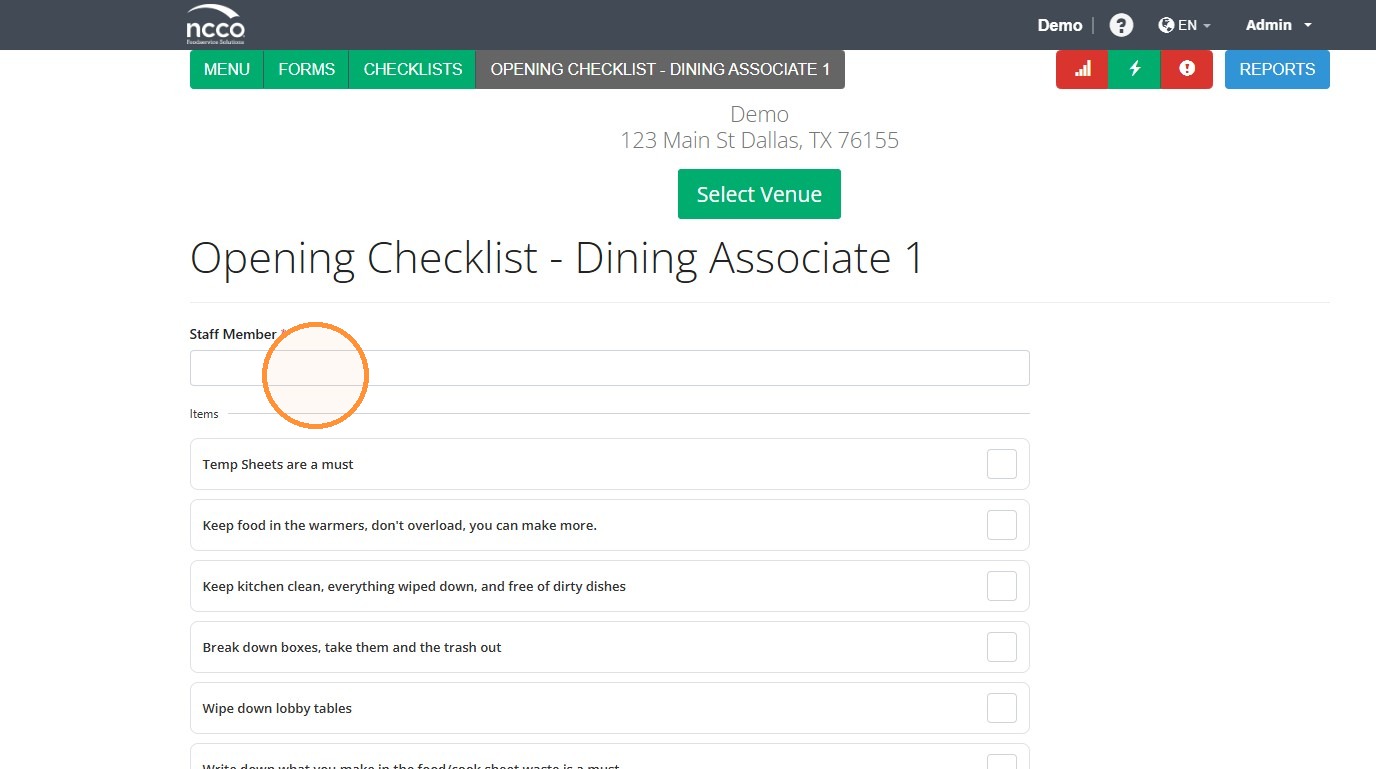
5. Type your name. It will signal that it is a new name. For all forms going forward this name will be included in the drop down feature.


Related Articles

  • How to Manage Temporary Staff Members in Task Manager - Admin View
  • Add Staff in the Task Manager App
  • Staff Missing on the App

Was this article helpful?

Yes
No
Give feedback about this article For additional assistance, see Contact & Support

Related Articles

  • How to Manage Temporary Staff Members in Task Manager - Admin View
  • Add Staff in the Task Manager App
  • Staff Missing on the App
© 2026 DateCodeGenie

899 Montreal Circle, St. Paul, MN 55102

Privacy Policy

Learn more about our product
contact us
About NCCO

Knowledge Base Software powered by Helpjuice

Expand