Run Product Control Tracking Reports in the Portal
Table of Contents
Portal Administrators and managers with portal access can customize and export product control reports in the portal.
Use reports to see prepped and wasted menu items based on filters set.
Steps:
1. Login to www.datecodegenie.com using the recommended browser, see Supported Internet Browser for Portal Access
2. Click on the Product Control tab on the side bar.

3. Adjust the filters on the top of the page to set up the Product Control Tracking report as needed.
NOTE
Data in the Print Job ID column will only appear if the Sort by is set to Print Job ID (New Format).

4. Click the Select Columns button.

5. Click Select all.

6. Click Deselect all.

7. Checkmark which columns to display in the report. Click Apply.

TIPS & TRICKS
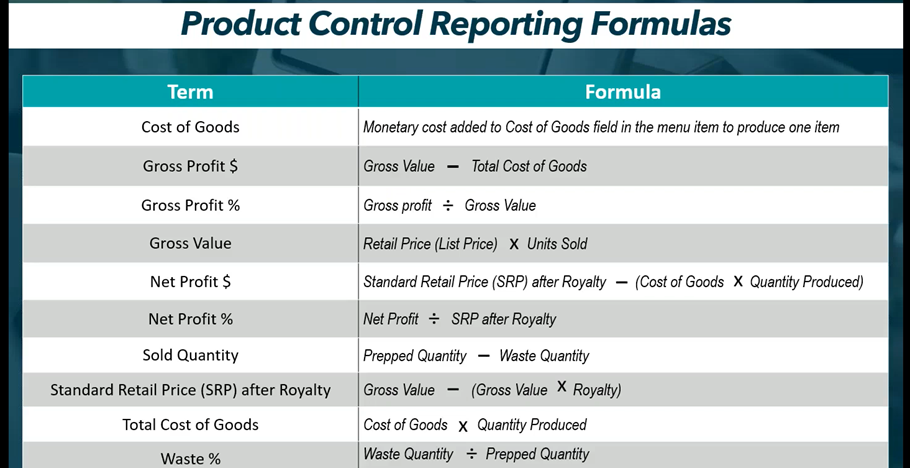
Use the formulas from the table below to help decide which columns to display.
8. OPTIONAL: Click Save Report As if these filters will be used often. Enter the new Report Name and click Submit.
TIPS & TRICKS
Need to run this report again? Save this to rerun as often as needed, see Manage Saved Product Control Reports


9. Click Export to generate the report.

10. Click the downloaded file in the upper right corner of the browser to open the CSV file.

11. The report will open in a CSV file with the columns selected in step 7. Click the Enable Editing button in the yellow ribbon to allow editing the report.